Getting Connected to the Internet

Everything you need from picking a great Internet provider to getting a computer.

Shortcuts: Practicallynetworked.com homenethelp . CNET
Other related pages: Connection persona , email persona , persona tips , Cookies .

Finding an Internet Provider

  1. A list of Internet providers worldwide is located at  The List .
  2. Want to move up to Broadband?  (DSL or Cable)  The place to visit is Broadbandreports.com  - Here you can  learn all about the providers in you local area.
  3. Connecting to AOL via an Internet Provider - in case you still need AOL, even after you get a real ISP connection.
Setting up the connection at home:
  1. Practicallynetworked.com - This is THE best site for helping you build/configure your own home network, and share a modem connection to the Internet. He also talks about security issues.
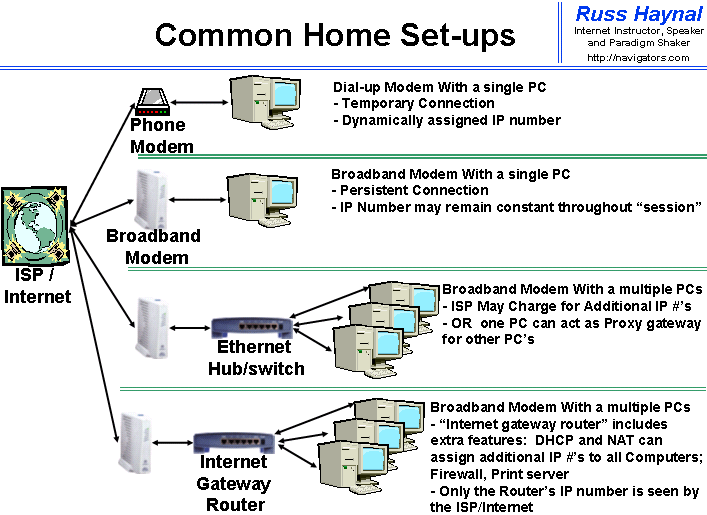
  2. homenethelp - another comprehensive site that walks you through all aspects of home networking. 
  3. CERT provides some general security advice: Home Computer Security, and  Home Network Security.
  4. NEVAS Cable / DSL Modem Tuning Guide -Includes lots of advice and security tips as well.


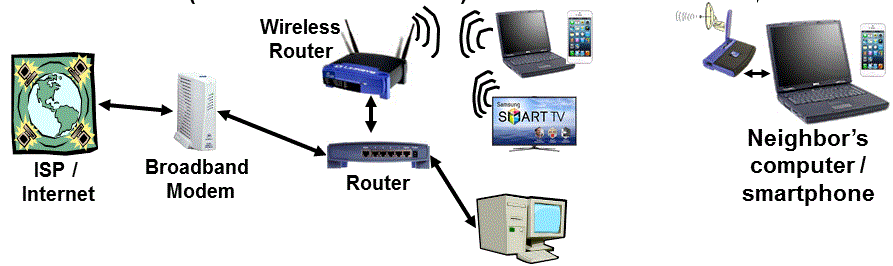
Wireless is becoming a popular choice.  Be sure to learn everything you can about wireless before you implement it. Read this article about wireless security from PC Magazine.  People are actually out prowling for your wireless network; see  Warchalking.org and Pittsburgh Wireless Community (Pittsburg WIFI Survey) Wireless security articles., A war-driving set-up, netstumbler (national map) (example screen shots).


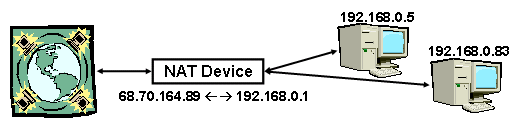
Network Address  translation (NAT) is the translation of an IP number from one network segment into an IP Number that is used within another network segment.   These translations occur for each packet of traffic as it flows across the NAT device. NAT is often used where a private network touches a public network, such as: the ISP towards your house; or within your own Network (Your modem  towards your Internal LAN)  There are certain IP numbers allocated for use on Private networks. (reference: RFC’s 1918, 1631) . Additional details about NAT are located here: HowStuffworks , homenethelp , The NAT Page .

A simple NAT Diagram:


To see your computer’s actual IP Address:     
   - Windows 95, 98: Start -> run -> winipcfg
   - Windows NT,2000, XP:  DOS Prompt -> ipconfig /all
       (the DOS Prompt is under : start --> programs (--> accessories) --> Command Prompt)

Getting software - how to embellish you machine with all kinds of internet and other software

Buying a computer - Use CNET's reviews to guide you. Here are a few of my thoughts on buying a computer:
  1. CPU Speed - The slowest speed on the market is PLENTY fast enough for standard websurfing, word processing etc. I would not spend  premium $$ to get the "fastest CPU" until my money has first been spent on the other items below.  (Unless of course you want to do 3-d gaming, video editing,   voice recognition, etc.)
  2. Reliable Name brand such as Gateway, Dell, Hewlett-Packard.  
  3. RAM - The more the better.  No less than 256  MB for windows XP.
  4. Display - This is what you look at all day.  17"  is a good size.   Most manufacturers offer two models at 17" - pay the extra ~$100 for the better display (smaller dot pitch, higher refresh rates, etc.)  LCD Screens are also becoming quite affordable, and they take up much less space. 
  5. Modem - Pay the small extra amount to get a better brand modem, unless you know you will be using a broadband connection
  6. Ethernet - This is often used when getting a broadband connection (cable or DSL).
  7. Hard Disk - For a small fee ($30-$50) you can often upgrade to a much large size.
  8. CD-ROM - consider upgrading to CD-RW - Then you can easily make backups of your own files.  Your will need CD-RW if you get into digital music or digital photography.
  9. Sound Card, Video Card - Not much need to pay premium $$ here, unless your computer will also be used for "3-D Virtual Reality Games", or video processing.  Video cards are  also important if you use a very large monitor (19"+)

Once you are connected, try testing your connection using one of these speed test pages: Toast.net , speedtest , DSLReports, Speedometer from Mcafee, Bandwidthplace_speeedtest.

[Russ Banner (9kb)]
Note for my Alumni: Your referrals are always appreciated

Home Page

Services / Background

I can be reached at Russweb 'at' navigators.com or 703-729-1757
Copyright ©  Information Navigators